
01Before you start
- Choose the name customers should see.
- Pick one product to start with. Write down its price and real stock quantity.
- Have a clear product photo ready. A logo can wait.
02Follow the five steps
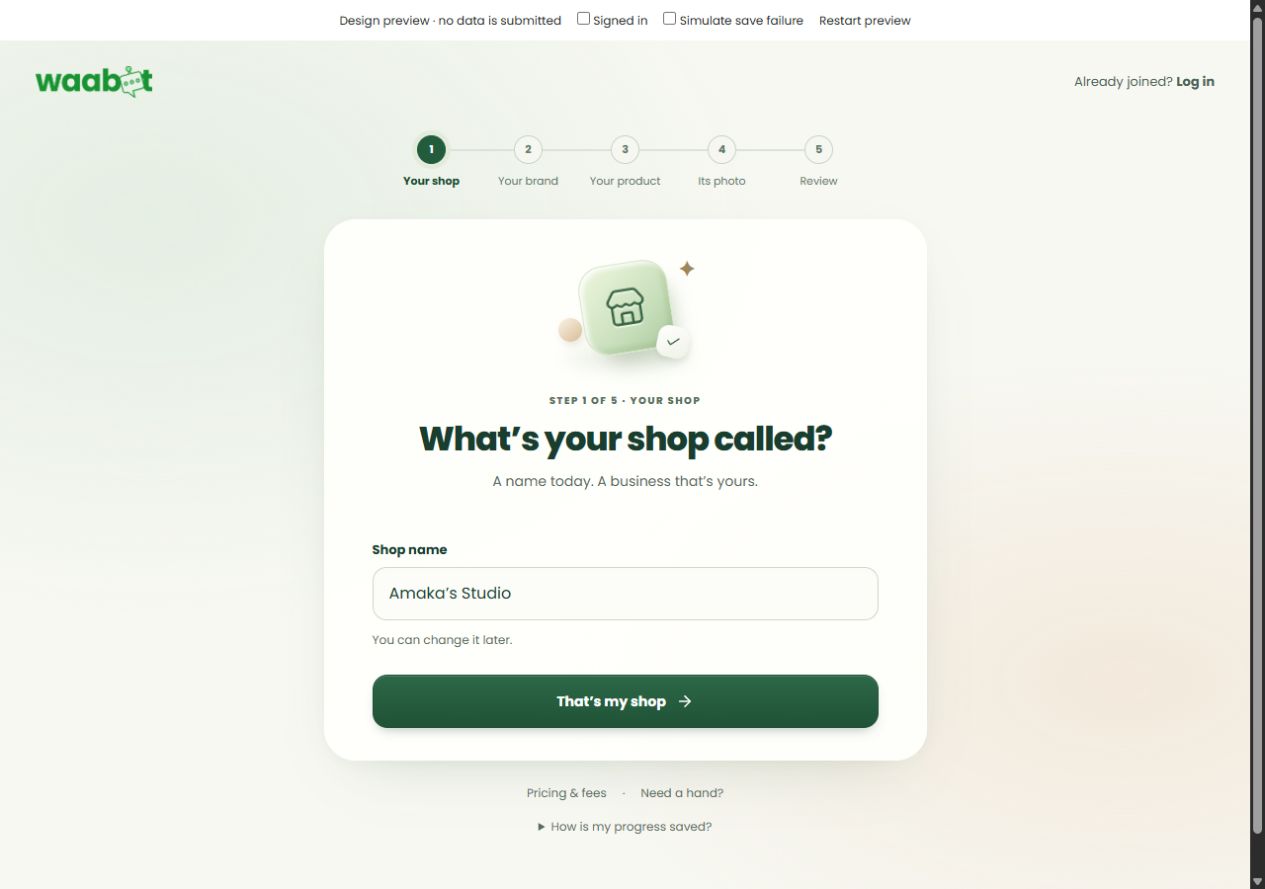
Open the shop setup. In Your shop, enter your shop name and choose That’s my shop.
In Your brand, add your logo and tagline, or choose Skip for now.
In Your product, enter the product name, price and available stock. Continue.
In Its photo, upload a product photo. Choose Save product, or Save without a photo.
In Review, check the name, price and stock. Use Edit to fix anything. Choose Save my shop & continue, then create an account or log in. If already signed in, choose Go to my dashboard.
03Check before sharing
Open your shop area in the dashboard and check whether the shop is live. A private draft is not visible to customers.
Review products, photos, prices and stock. Confirm the intended products are published.
Set up payments and review your fees before taking paid orders.
Open the public shop link in a signed-out browser window. Check what a customer can see.
Share that public link on your business profiles or in a customer conversation.
A little extra help
I do not have a logo or photo yet.
You can skip branding and save a product without a photo. Add clear images before promoting it to customers.
I completed setup, but customers cannot see my shop.
Check the shop and product publishing status. Completing a private draft is not the same as publishing it.
Dashboard links will ask you to sign in.