
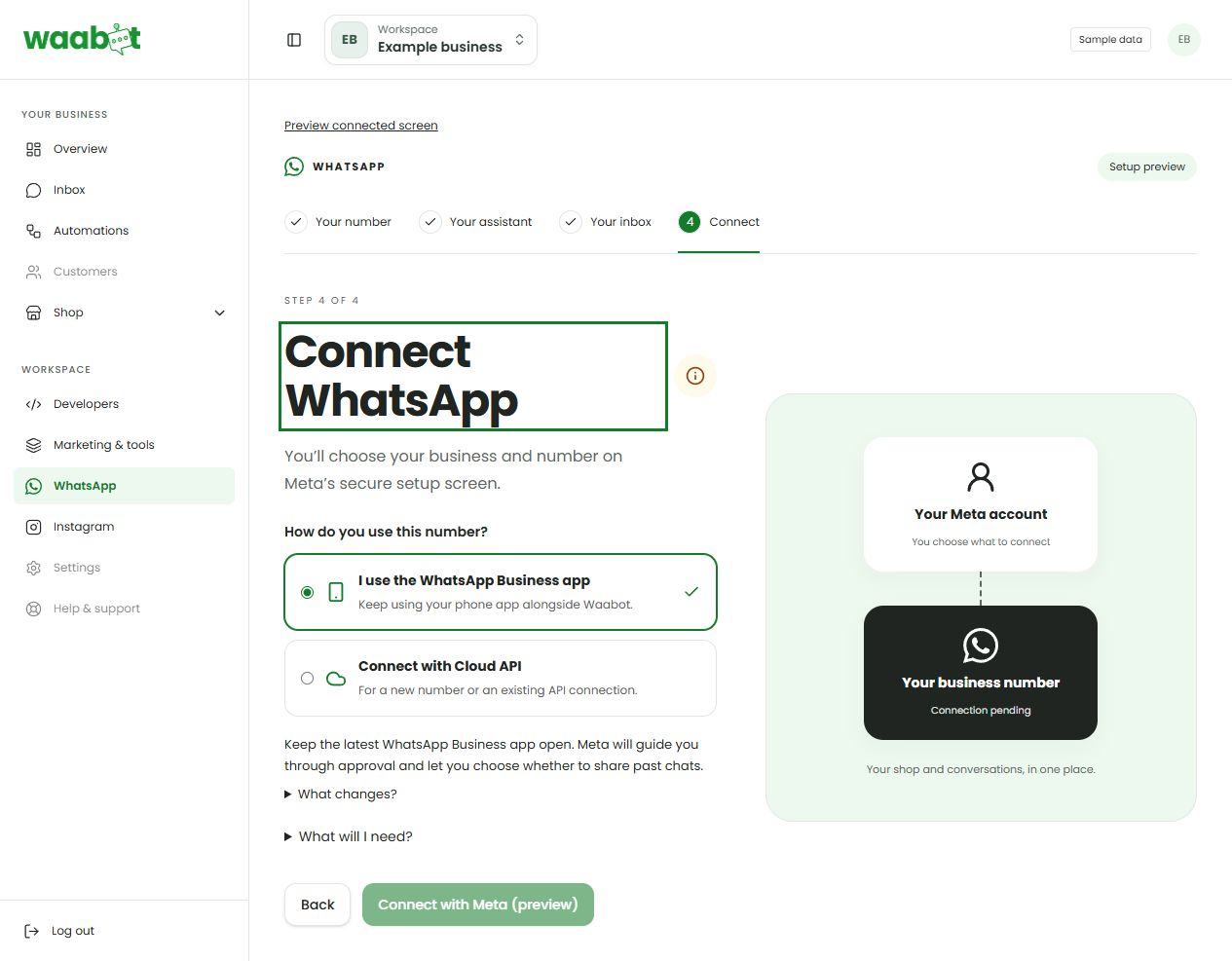
01Choose how you use the number
- I use the WhatsApp Business app: use this option if you want an eligible Business app number to work with Waabot. Keep the latest app open and follow Meta’s approval steps.
- Connect with Cloud API: use this option for a new number or an existing API connection.
- If the Business app option says it is being prepared, it is not available yet for that setup. Do not remove your existing account to try to force it.
02Connect step by step
Select the intended business workspace.
Open WhatsApp. If this is your first connection, follow Your number, Your assistant and Your inbox until you reach Connect. For an existing account, open its connection area.
Choose the method that matches your number and start the connection.
Follow Meta’s sign-in and approval steps. Choose the intended business and phone number.
Return to Waabot and check the connection status. Review readiness or account-health notices.
If offered, decide whether to share contacts and history. Accepted sharing is not the same as a completed import.
Use a different phone to send a test customer message. Check that it appears in the inbox, then send a manual reply within the allowed window.
03Connected is the start
Check billing for paid Meta messages, account restrictions and permissions before publishing automations. Historical imports do not create a new customer reply window. For eligible Business app connections, replying from the phone app pauses that conversation’s bot; resume it deliberately when ready.
A little extra help
The connection button is unavailable.
Read the setup notice. Check paid access, available connection method and provider readiness. Contact support if it reports that platform setup is required.
My old conversations are not all visible.
History sharing depends on the connection method and Meta’s limits. Do not assume all old chats or media will be imported.
Official references
Provider policies can change. Check the current requirements before connecting or sending.
WhatsApp: message pricing and rate cardsDashboard links will ask you to sign in.