01Get ready
- Use an Instagram professional account: Business or Creator.
- Make sure you can sign in to and manage that account.
- Select the workspace that should receive its messages.
- Use Growth or Pro. Starter does not include Instagram automation.
02Connect and check
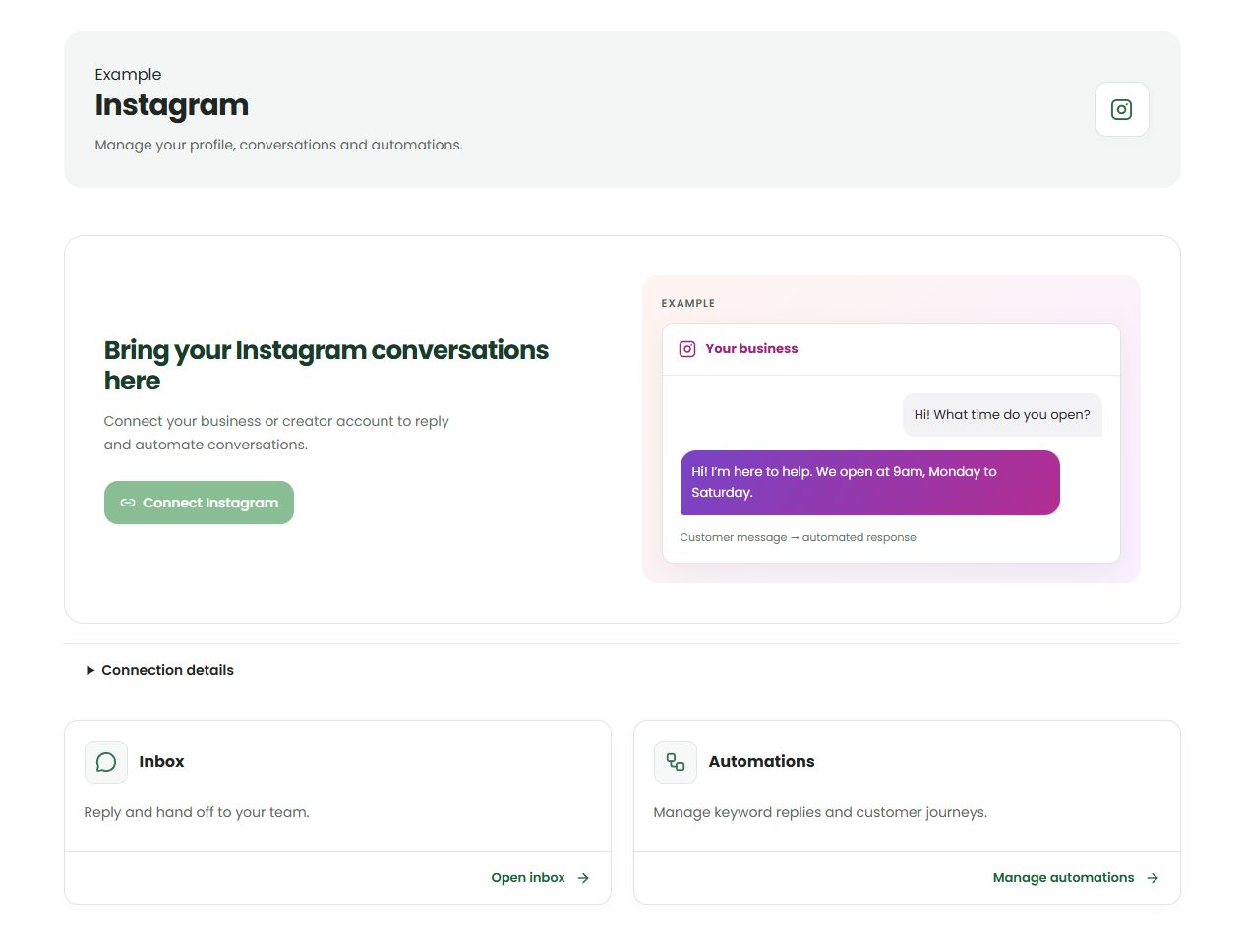
Open Instagram in your dashboard.
Read the connection status and setup notices.
Choose Connect Instagram. Sign in to the intended account and approve the requested access.
Return to Waabot. Check the account name and connection status.
If you want comment-to-DM, check that comment access is available. Reconnect if the screen asks you to grant updated access.
From a different Instagram account, send a new DM. Open the inbox, select Instagram and check that the message arrived.
Send a manual reply inside the permitted reply window before building an automation.
03After connecting
Edit your public profile details in Instagram. The Waabot profile view is read-only. If access expires, reconnect the same account to avoid mixing account history. Earlier Instagram chat history is not automatically imported.
WhatsApp template pricing does not describe Instagram DMs. Waabot plan and AI usage still apply to Instagram. Do not treat paid access as permission to send unsolicited or unlimited follow-ups.
A little extra help
I cannot connect a personal account.
Use a professional account and check the current Meta requirements linked below.
DMs work but comment replies do not.
Check comment access, the selected post and the flow’s published state. Grant updated permissions if requested.
Official references
Provider policies can change. Check the current requirements before connecting or sending.
Meta: Instagram account requirementsDashboard links will ask you to sign in.